 gulammdweb.com@gmail.com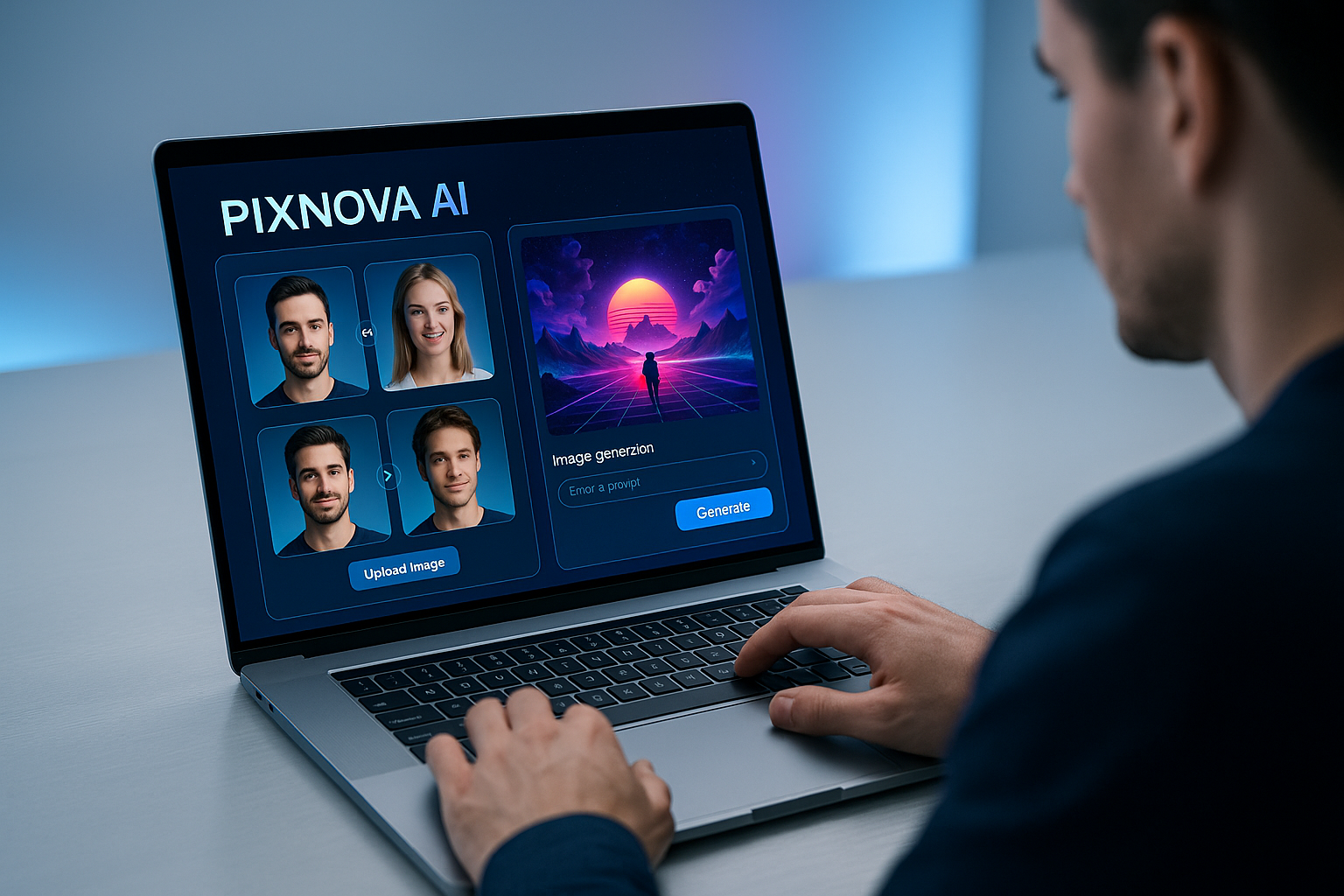
Table of Contents
ToggleIntroduction to PixNova AI
I’ll be honest: I approached PixNova AI with a bit of scepticism. “Another free AI image tool” I thought, “how good can it be?” But after spending a few hours uploading selfies, group shots, videos and text-prompts, I found myself pleasantly surprised. In this review I’ll walk you through what I experienced — the wins, the hiccups, and whether this tool might genuinely belong in your creative-kit.
 If you enjoy AI tools with personality, check out our review of Janitor AI.
Hands-On Test Experience
First impressions
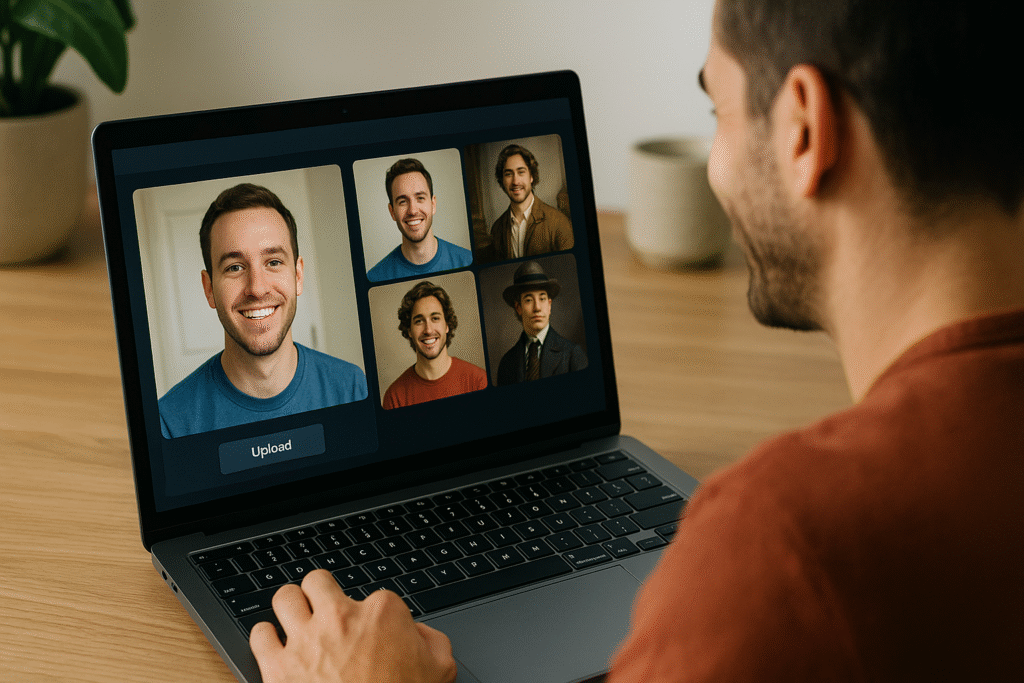
Logging in (spoiler: you don’t really need to create an account) was smooth. The interface is clean, minimal, and feels friendly to beginners. I uploaded a selfie and tried the “Headshot Generator” — within seconds I had five alternate “professional profile photo” versions. Nice, right?
Then I moved on to the fun stuff: face-swap. I grabbed a group photo of friends at a picnic, selected one friend’s face and replaced it with another. The tool handled it well — no weird cutouts, face alignment worked, and the result looked good enough to share on a group chat. (Yes, I did that.)
Deep dive: face-swap in video
Now I tried a short 8-second video clip. Upload → wait → results. The blending was decent. While the lips didn’t always sync perfectly, the overall effect was surprisingly natural given it’s free and browser-based. In one attempt though the background flickered slightly — a reminder that miracles don’t always happen.
Generation & editing tests
Next I played with the text-to-image generator: I typed “cyberpunk city street at dusk, neon reflections, rain, 4K” and got a pretty solid image in seconds. Then I tried the “Clothes Changer” on a full-body shot — I asked for a “red formal suit with black tie” and it delivered something plausible (though the tie looked a bit stiff). Finally, I used the “Upscaler” on a low-resolution photo — result: visible improvement in clarity, though still some artefacts at 4× magnification.
Features & Benefits (with examples)
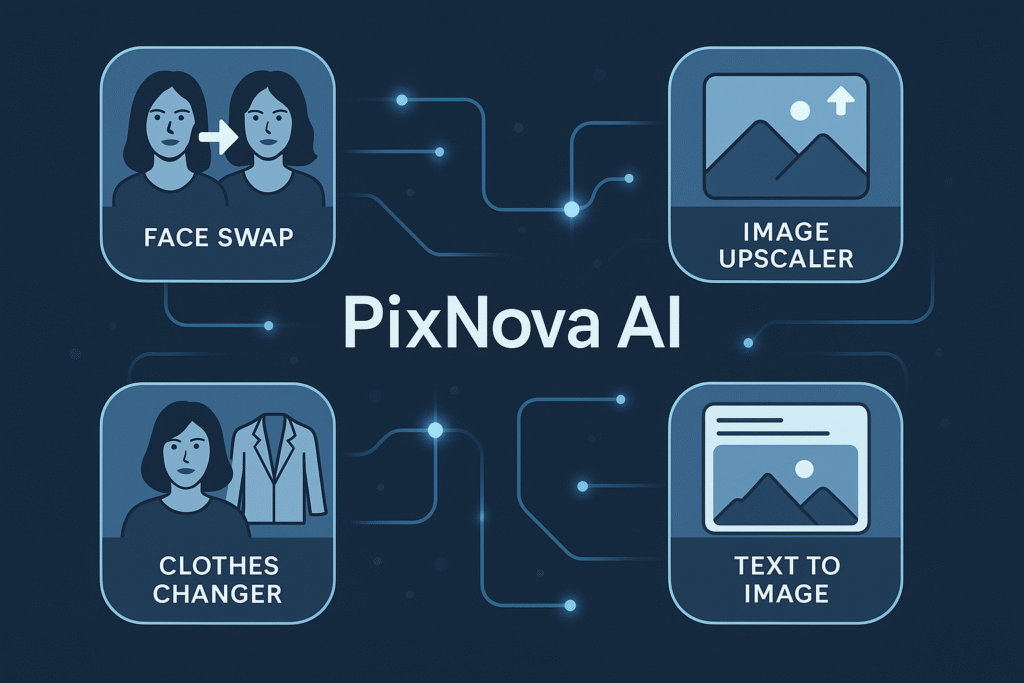
1. AI Face Swap (photos, GIFs, short videos)
Imagine you upload a photo of yourself and your friend. With a few clicks you swap your faces. I did this with the picnic photo mentioned earlier — it felt more like editing fun than serious design work. For videos, you can upload a short clip and replace faces — ideal for social media skits. Some users have reported up to 10-second video limit. PixNova AI
2. Image Upscaler / Photo Enhancer
Got a blurry photo from an old phone? Use the Upscaler on PixNova AI to boost resolution and sharpen details. In my test the subject’s face became noticeably crisper (though backgrounds still had noise). According to reviews, this is one of the standout tools.
3. Text-to-Image Generation & Body/Clothes Tools
Type what you want – e.g., “portrait of a young woman in vintage 1950s dress, studio lighting” – and the system generates it. I tried both realistic and stylised prompts; the results were hit-or-near-hit. The “Clothes Changer” took a full-body photo and let me experiment with outfit styles.
4. No Sign-Up, No Watermark (for many features)
One of the things that surprised me about PixNova AI: no forced account creation (at least initially) and many outputs come with no watermark. That makes it convenient for quick tests.
5. Group Face-Swap & Multi-Face in one image
One neat trick: you can upload a group photo and swap multiple faces in one go. I did this with a 4-person photo and swapped two faces — worked fine. Good for memes or fun social posts.
Use Cases / Who It’s For
Ideal for
Content creators & social media users who need quick photo/video edits, face-swaps, outfit changes, fun stuff.
Marketers, small businesses doing visual posts but without heavy editing budget/staff.
Hobbyists or anyone curious about AI image tools who wants something free, simple, browser-based.
Designers concepting ideas – e.g., “what if my character wore this outfit?” — the body/clothes tools help fast prototyping.
Might not be optimal for
Professional photographers / visual artists who demand ultra-high fidelity, extreme control or batch-processing.
Video creators needing long or high-res clips (tool currently limits video length, some lag).
Users wanting offline software or full control layers – this is browser-based, streamlined, not full Photoshop replacement.
Pros & Cons
Pros:
✅ Free to use for many features, no watermark in many cases
✅ Very beginner-friendly interface, minimal learning curve
✅ Fast and fun — lends itself to quick creative edits
✅ Multi-feature: face swap + clothes changer + image upscaler + generation
✅ No heavy install required; works in browser
Cons:
⚠️ Video face-swap length limited (often ~10 seconds) and some lag.
⚠️ Some small artefacts / glitches especially in complex images or backgrounds.
⚠️ For very professional use (print-quality, large format), it may fall short of high-end tools.
⚠️ Internet connection required; browser-based means you’re dependent on web interface.
Ethical / Privacy Concerns
Using any AI image tool, including PixNova AI, brings up real ethical and privacy questions. Here are a few thoughts based on my experience and what the vendor shares:
-
You’re uploading photos/videos — always ensure you have rights/permission, especially if other people appear.
-
Face-swap tools can enable deep-fake-style editing; good fun, but misuse is possible. The vendor notes “automatic deletion of face swap records” in one of their blogs. PixNova AI
-
Free use often means data might still be processed on remote servers; check privacy policy if you’re working with sensitive images.
-
If you’re creating commercial content (ads, models) using generated images, check licensing terms – some platforms restrict commercial use even if free.
-
Be mindful that generated or swapped images can misrepresent reality. Use responsibly.
Final Verdict
If you’re looking for a tool that’s easy, fun, and offers a surprising amount of capability — especially given it’s free — then PixNova AI is a strong pick. For my personal creative toolbox, I’ll definitely keep it around.
That said: if you’re a professional requiring flawless high-res output, long video edits, or highly customised editing pipelines, you’ll likely need something more advanced. But for most social, hobby, marketing and concept uses? PixNova AI hits the sweet spot.
So yes — I recommend giving PixNova AI a try. Upload a test image, swap a face, generate a creative prompt and see how it feels for you. If you enjoy the ride, you’re set.
FAQs about PixNova AI
Q1: Is PixNova AI really free?
Yes — many features are free, browser-based, and work without paywall at least for basic use.
Q2: Do I need to create an account/sign-up?
In most cases no. The platform emphasizes use without sign-in for many tools.
Q3: How long are the video face-swaps?
Typically up to around 10 seconds, according to current specs.
Q4: Can I use the generated images commercially with PixNova AI?
The terms aren’t always super explicit, so if you plan commercial usage you should check PixNova’s licensing or contact their team to be safe.
Q5: Is the tool safe for privacy? Will my images be stored?
The vendor claims that major tools operate without storing face-swap records. However, as with any online tool, if you upload sensitive/personal data you should be mindful.
Q6: What resolution can I generate or upscale to?
Results vary; photo generation can be high quality (4K prompt supported) and upscaler improves clarity, but you may still see artefacts when pushing very high resolutions.
Q7: Does it support multiple faces in a photo?
Yes — the “Multiple Face Swap” tool lets you select more than one face in group photos.